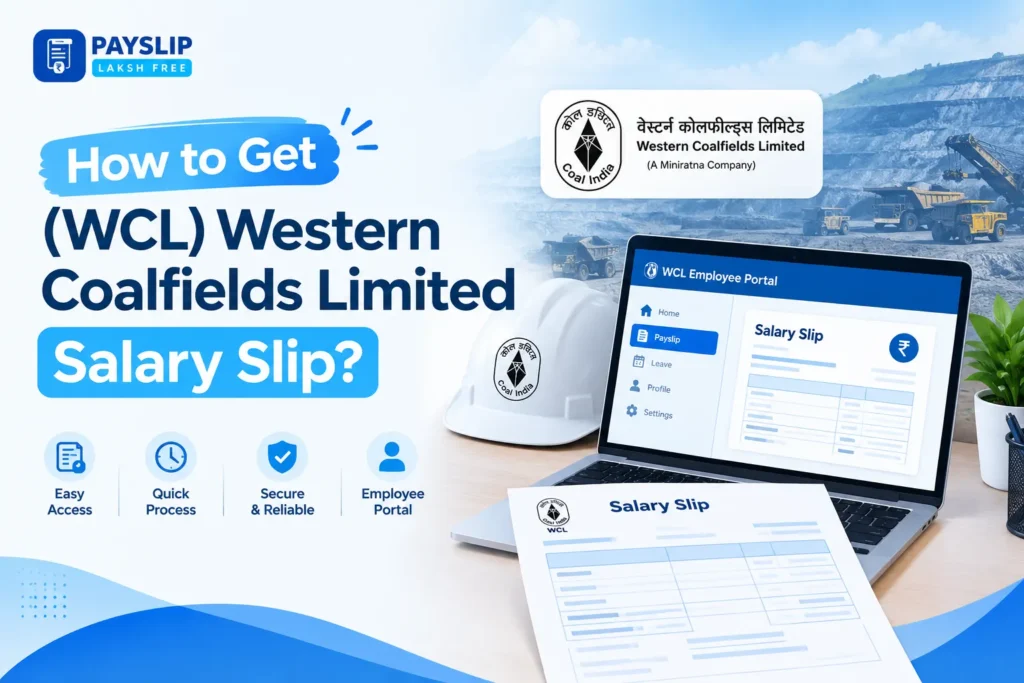
If you are a Western Coalfields Limited (WCL) employee looking for your WCL salary slip, you can access your salary statement online through the official Coal India salary portal. The portal currently asks for your Employee Code (EIS/PIS) and sends an OTP to the mobile number registered with SAP.
This guide explains the WCL salary slip download process, how the employee login works, where to find the official portal, what to do if you do not receive the OTP, and how WCL attendance and biometric systems relate to salary information.
Quick answer: To access your WCL salary slip online, open the official Coal India Salary Statement portal, enter your EIS/PIS employee code, submit it, and complete OTP verification using the mobile number registered with SAP. After successful verification, you can access your salary statement.
WCL Salary Slip Portal: Official Login
The official online salary statement page is hosted by Coal India Limited:
Official WCL Salary Statement Portal:
Coal India Salary Statement Portal
The page is titled “Salary Statement” and currently provides an option to view the salary statement by entering an Employee Code (EIS/PIS). The portal also states that the OTP will be sent to the employee’s SAP-registered mobile number.
WCL’s current Internal Portals page includes employee services such as Form-16 and View My Attendance, the latter being used to check biometric attendance.
How to Get WCL Salary Slip Online
The WCL salary slip download process starts with the official salary statement portal.
Step 1: Open the official salary portal
Visit the Coal India Salary Statement page:
View WCL/Coal India Salary Statement
It is better to access the salary statement from the official Coal India or WCL website rather than using an unofficial website that asks for employee credentials.
Step 2: Enter your Employee Code
The salary portal asks for:
Employee Code (EIS/PIS)
Enter the employee code associated with your WCL employment.
Check the number carefully before submitting it. An incorrect employee code may prevent the system from identifying your employee record.
Step 3: Submit the details
After entering the EIS/PIS employee code, select Submit.
The portal will then begin the verification process.
Step 4: Check your registered mobile number
The official portal states that an OTP is sent to the SAP registered mobile number.
Keep your registered mobile phone available while completing the login process.
Step 5: Enter the OTP
Enter the OTP received on your registered mobile number.
Once the verification is successful, the system can provide access to your salary statement.
Step 6: View your salary statement
After successful verification, follow the options displayed on the portal to view your salary information.
If the portal provides a download or print option for the statement available to you, you can save a copy for your records.
How to Download WCL Salary Slip PDF
Many employees search specifically for wcl salary slip pdf download, wcl salary slip pdf, or wcl salary slip download pdf because they want a digital copy of their monthly salary record.
The first step is the same: access the official salary statement portal and complete employee verification.
Once you have successfully accessed the statement:
- Open the required salary statement.
- Check the employee and salary information.
- Look for the available print/download option.
- If a PDF option is provided, save the file to your device.
- If the portal provides only a print function, you can use your browser’s print dialog to save the displayed document as a PDF, where supported.
The exact options available after login can depend on the current portal interface and the employee’s account.
Important: Do not confuse a PDF generated or saved from an unofficial website with an official WCL salary statement. For employment, loan, income verification, or other formal purposes, use the salary statement issued through the authorized system.
WCL Employee Salary Slip Login
The terms WCL employee salary slip, WCL employee salary slip download, and WCL salary slip login all relate to the same basic requirement: an employee needs to authenticate themselves before accessing their salary information.
The official salary portal currently identifies the following login requirements:
- Employee Code (EIS/PIS)
- Mobile number registered with SAP
- OTP verification
There is an important distinction here. The WCL website contains a directory of several internal employee portals, while the dedicated online salary statement page is hosted at the Coal India salary portal. WCL’s Internal Portals page currently lists services such as View My Attendance, Form-16 and other employee systems.
Therefore, if you are specifically searching for your WCL employee salary slip, start with the official salary statement portal rather than assuming that every employee service is available through the same WCL login page.
WCL Attendance Salary Slip: What You Should Know
Some searches specifically mention WCL attendance salary slip and WCL attendance salary slip PDF download.
Attendance and salary information are related, but they are not necessarily the same document or portal.
WCL’s official Internal Portals directory currently includes “View My Attendance,” described as a service for employees to know their biometric attendance.
This means an employee looking for attendance information should distinguish between:
- Salary statement — used to view salary-related information.
- Attendance portal — used to view attendance information.
- Payslip/salary slip — commonly used to describe the salary statement.
If your purpose is specifically to check your monthly salary, use the official salary statement portal. If you need to check biometric attendance, use the View My Attendance service listed on WCL’s official Internal Portals page.
WCL Biometric Attendance and Salary Slip
Another related search is wcl biometric attendance salary slip.
WCL currently provides an official View My Attendance portal through its Internal Portals directory, and the service is described as a way for employees to know their biometric attendance.
Attendance can be relevant to payroll processing, but employees should not assume that their biometric attendance record itself is their salary slip.
If you need:
Your salary → use the Salary Statement portal.
Your biometric attendance → use WCL’s View My Attendance service.
Keeping these two purposes separate makes it easier to find the correct document or portal.
WCL AMS Salary Slip: What Does It Mean?
The search term wcl ams salary slip appears among related searches for WCL salary information.
However, employees should be careful when searching for internal system names because different WCL/CIL services can have different functions.
The current WCL Internal Portals directory publicly identifies View My Attendance as the biometric attendance service, along with other employee systems.
If you are specifically looking for an AMS-related service, use the official WCL portal directory rather than entering your employee information into an unofficial website.
For your actual salary statement, the dedicated Coal India salary portal remains the relevant starting point:
Official Salary Statement Portal
WCL PISNET Login Salary Slip: Is It the Same as the Salary Portal?
Employees may also search for wcl pisnet login salary slip or wcl pisnet login salary slip download when trying to locate their salary information.
It is important not to assume that every employee system is the same.
The currently accessible official salary page specifically identifies the required employee identifier as EIS/PIS and provides OTP-based verification through the SAP-registered mobile number.
If you are trying to access your salary statement, the safest approach is to start from the official Coal India Salary Statement page rather than relying on a third-party page that happens to use terms such as PISNET or employee login.
WCL Monthly Salary Slip
If you need a WCL monthly salary slip, the online salary statement portal is the appropriate place to begin.
Employees commonly keep monthly salary statements for:
- Personal financial records
- Loan applications
- Income verification
- Salary verification
- Tax-related documentation
- Reviewing earnings and deductions
- Maintaining employment records
Whether previous months are available to a particular employee depends on the records and options provided after authentication. You should rely on the documents actually made available through the official system rather than assuming that every historical month will be accessible.
What Information Is Needed for WCL Salary Slip Login?
You do not need to provide your salary details to a third-party website simply to access the official WCL salary statement.
The official portal currently requires the following:
| Requirement | Purpose |
|---|---|
| Employee Code (EIS/PIS) | Identifies the employee |
| SAP-registered mobile number | Receives the OTP |
| OTP | Verifies the login |
| Internet connection | Required to access the portal |
The salary portal explicitly states that the OTP is sent to the mobile number registered with SAP.
WCL Salary Slip Login Not Working? Try These Steps
If your WCL salary slip login is not working, check the following before contacting support.
1. Check your employee code
Make sure your EIS/PIS employee code is entered correctly.
A single incorrect digit can prevent the system from identifying your employee record.
2. Check your registered mobile number
The OTP is sent to the mobile number registered with SAP.
If you recently changed your mobile number, this may be one reason you cannot complete OTP verification.
3. Wait for the OTP
Network delays can sometimes affect OTP delivery. Give the message a little time before trying repeatedly.
4. Check your mobile network
Make sure the registered phone can receive SMS messages.
5. Try another browser
If the page is not working correctly, try opening the official portal in another updated browser.
6. Check the official WCL website
WCL maintains an official Internal Portals directory for employee services. It currently includes services such as Form-16 and biometric attendance.
7. Avoid unofficial salary-slip websites
Do not enter your employee code, OTP, mobile number, or other employment information into a website simply because it ranks for a WCL-related search.
WCL Salary Slip vs Payslip vs Salary Statement
You may see several different terms when searching online:
- WCL salary slip
- WCL payslip
- WCL salary statement
- WCL employee salary slip
- WCL monthly salary slip
These terms are often used by employees to describe documentation showing salary information.
However, the official Coal India page currently uses the wording “Salary Statement.”
For that reason, searching for WCL salary slip does not necessarily mean there is a separate WCL-branded PDF portal. The official salary statement system is the important destination.
What Is Usually Shown on a Salary Slip?
A salary statement or payslip generally provides information related to an employee’s earnings and deductions for a particular salary period.
Depending on the organization’s payroll system and the document provided, salary information can include items such as:
- Employee identification details
- Salary period
- Basic salary
- Allowances
- Deductions
- Other payroll components
- Net salary
The exact fields and terminology on a WCL salary statement should be taken from the official document available to the employee.
Do not rely on a generic payslip format as proof of what an official WCL statement contains.
Need a Payslip Template for Reference?
A WCL salary slip obtained through the official system should be used whenever you need an authentic employment salary document.
However, if your purpose is simply to understand how a payslip is structured or you need a blank format for an appropriate record-keeping purpose, you can explore our payslip template.
A template can help you understand common sections such as employee information, earnings, deductions and net pay.
Note: A template is not an official WCL document and should never be represented as one.
Need to Create a Payslip?
If you need to create a payslip using your own legitimate salary or payroll information, you can use a payslip generator.
This can be useful when you need a structured payslip document for an appropriate personal or business purpose.
Again, a third-party payslip generator does not provide an official WCL salary statement. If you need an official document as a WCL employee, obtain it through the authorized Coal India/WCL system.
Frequently Asked Questions About WCL Salary Slip
1) How can I download my WCL salary slip?
Go to the official Coal India Salary Statement portal, enter your EIS/PIS employee code, and complete OTP verification using the mobile number registered with SAP. After authentication, use the available viewing, printing, or downloading options.
2) Where can I find the WCL salary slip PDF download?
Start with the official Coal India Salary Statement portal. After logging in, check the available options for viewing, printing, or saving your salary statement as a PDF.
3) What is required for WCL employee salary slip login?
The official salary page asks for an Employee Code (EIS/PIS) and states that an OTP will be sent to the mobile number registered with SAP.
4) How can I download my WCL employee salary slip?
Use the official salary statement portal, complete the EIS/PIS and OTP verification process, and then use the download or print functionality available for your salary statement.
5) What is the WCL attendance salary slip?
WCL has a separate View My Attendance service for employees to check biometric attendance. An attendance record should not automatically be treated as the employee’s salary statement.
6) Where can I check WCL biometric attendance?
The official WCL Internal Portals page currently lists View My Attendance, described as a service to know your biometric attendance.
7) What is WCL AMS salary slip?
“WCL AMS salary slip” is a related search phrase used by employees looking for WCL salary information. If you need an official salary statement, use the authorized Coal India Salary Statement portal rather than an unofficial website.
8) Can I get my WCL monthly salary slip online?
The official salary statement portal is the appropriate starting point for accessing your salary information. The availability of specific historical monthly statements depends on the records and options presented after employee authentication.
What should I do if my WCL PISNET login salary slip is not working?
First, use the official Coal India Salary Statement portal and verify your EIS/PIS employee code and SAP-registered mobile number. If you are specifically trying to access another internal WCL system, use the official WCL Internal Portals directory to locate the appropriate service.
Can I use a payslip generator to make an official WCL salary slip?
No. A third-party generator should not be used to represent a document as an official WCL salary statement. Use the authorized WCL/Coal India system whenever an official salary document is required.
Final Takeaway
Getting a WCL salary slip online starts with the official Coal India Salary Statement portal. Enter your EIS/PIS employee code, complete OTP verification using your SAP-registered mobile number, and then access the salary statement available to your account.
For attendance-related information, WCL separately provides View My Attendance, which its official portal directory identifies as the biometric attendance service.
If you are searching for WCL salary slip PDF download, WCL employee salary slip, WCL monthly salary slip, or related terms such as WCL attendance salary slip, the key is to use the correct official system rather than relying on third-party login pages.