If you are a Maharashtra government employee looking for your Sevaarth salary slip, you can usually access your monthly salary details through the official Sevaarth employee login connected with the Maharashtra government’s Mahakosh financial systems.
A Sevaarth salary slip, also called a Sevaarth payslip or Maharashtra government salary slip, contains important information such as basic pay, allowances, deductions, net salary, and other payroll details.
This guide explains how to access your salary slip online, what details you may need, how to save it as a PDF, and what to do if you cannot log in.
Important: Sevaarth portals may differ depending on your department or organization. Use the official portal assigned to your department and follow the options available after login.
What Is a Sevaarth Salary Slip?
A Sevaarth salary slip is an electronic record of an employee’s salary generated through the Sevaarth payroll system used by the Government of Maharashtra.
The official Mahakosh documentation describes Sevaarth as a payroll system for Maharashtra government employees. Its functions include employee registration, salary bill generation, allowances and deductions, supplementary bills, and an Employee Corner.
Depending on your department and the month selected, a salary slip may include:
- Employee name
- Sevaarth ID or employee ID
- Designation and department
- Pay level or basic pay
- Dearness Allowance (DA)
- House Rent Allowance (HRA), where applicable
- Travel Allowance (TA), where applicable
- Other allowances
- Provident Fund or NPS deductions
- Professional tax
- Income tax deductions, where applicable
- Other recoveries
- Gross salary
- Total deductions
- Net salary payable
- Salary month or pay period
The exact fields depend on the employee’s department, salary structure, and payroll configuration.
Official Sevaarth Salary Slip Login Portal
You should begin with the official Sevaarth portal rather than an unofficial salary-slip website.
Main Sevaarth portal:
Official Mahakosh website:
Mahakosh – Government of Maharashtra
Mahakosh is the official website of the Directorate of Accounts and Treasuries under Maharashtra’s Finance Department. It provides access to government financial systems and related services.
Before You Start
Keep the following information ready:
- Your Sevaarth ID
- Your Sevaarth login password
- CAPTCHA details, if displayed
- The salary month or financial year you want to check
- A stable internet connection
If you do not know your Sevaarth ID or password, contact your department’s establishment section, drawing and disbursing officer (DDO), or the person responsible for payroll administration.
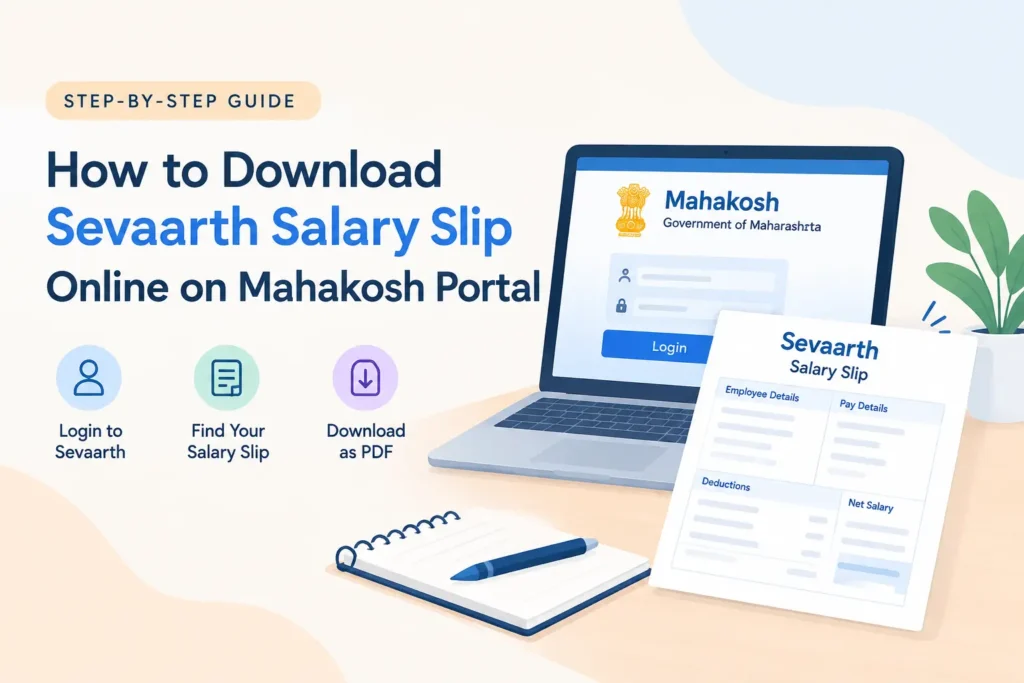
How to Download Sevaarth Salary Slip Online
Follow these steps to check your salary slip through the official Sevaarth system.
Step 1: Open the Official Sevaarth Portal
Visit the official Sevaarth website:
Make sure you are using the official government website. Avoid entering your login details on websites that claim to provide salary slips but are not connected to the government portal.
Step 2: Enter Your Login Details
On the login page, enter the details requested by the portal, such as:
- Username or Sevaarth ID
- Password
- CAPTCHA, if required
Then select the Login or Submit option.
The exact login fields may vary between Sevaarth implementations. Some department-specific portals use a similar login process but have different web addresses.
Step 3: Open the Employee Corner or Salary-Related Section
After logging in, look for an option such as:
- Employee Corner
- Salary Details
- Pay Slip
- Salary Slip
- Payroll
- Reports
- View Salary
- Pay Details
The name of the option may differ depending on your department’s Sevaarth portal.
The Employee Corner is an important part of the Sevaarth system. Official Maharashtra documentation identifies it as a feature of the payroll application.
Step 4: Select the Salary Month
Choose the month or period for which you want to view your salary slip.
For example, you may need to select:
- April 2026
- May 2026
- June 2026
Some portals may ask you to select a financial year first and then choose the relevant month.
If the salary slip is not available for the latest month, it may be because the salary bill has not yet been processed, approved, or uploaded.
Step 5: View Your Sevaarth Salary Slip
After selecting the required month, choose the available option to View, Search, Generate, or Display the salary slip.
Review the information shown on the screen, including:
- Employee details
- Basic salary
- Allowances
- Deductions
- Gross salary
- Net salary
- Salary period
Check that the salary month and employee details are correct before saving the document.
Step 6: Download or Print the Salary Slip
If the portal provides a Download, Print, or Export option, select it.
You may be able to:
- Click Print.
- Choose Save as PDF in the printer settings.
- Select a folder on your device.
- Save the salary slip.
If a direct PDF download option is available, you can use that instead.
Tip: Save the file with a clear name, such as: Sevaarth_Salary_Slip_May_2026.pdf
This makes it easier to find the document later.
Can I Download a Sevaarth Salary Slip Without Login?
Generally, you should not expect to download an individual employee’s official Sevaarth salary slip without authentication.
Salary slips contain private payroll information, so access is normally provided through an authorized employee login or the department’s designated system.
If you have forgotten your password or cannot access your account, contact your department’s payroll administrator or DDO. Do not share your password or OTP with anyone claiming to provide a salary slip download service.
What Information Is Shown on a Sevaarth Payslip?
The exact format can vary, but a Sevaarth payslip commonly helps employees review the following:
| Salary Component | What It Means |
| Basic Pay | The basic salary used to calculate several other components |
| Dearness Allowance | An allowance generally linked to applicable government rules |
| House Rent Allowance | HRA, where applicable |
| Travel Allowance | TA or other applicable travel-related allowance |
| Other Allowances | Additional salary components applicable to the employee |
| Gross Salary | Salary before deductions |
| Provident Fund / NPS | Applicable retirement-related deductions |
| Professional Tax | Applicable professional tax deduction |
| Income Tax | Tax deducted from salary, where applicable |
| Other Deductions | Loans, recoveries, or other authorized deductions |
| Net Salary | Amount payable after deductions |
Note: Not every employee will have every component. Salary details depend on the employee’s department, post, pay structure, and applicable rules.
Sevaarth Salary Slip Not Showing? Common Reasons
Sometimes employees can log in but cannot find the required salary slip. Here are some common reasons.
1. The Salary Bill Has Not Been Processed
The latest month’s salary slip may not appear until the salary bill has been generated and processed.
2. The Wrong Month or Financial Year Is Selected
Check whether you selected the correct financial year and salary month.
3. Your Department Uses a Different Sevaarth Portal
Maharashtra has department-specific Sevaarth implementations. For example, official portals exist for different employee groups and organizations, including HTESevaarth and other department-specific systems.
If the main portal does not recognize your login, confirm the correct portal address with your department.
4. Your Employee Details Have Not Been Updated
Incorrect or incomplete employee information may affect access to payroll records. Ask your establishment section or DDO to verify your employee details.
5. The Portal Is Temporarily Unavailable
Government portals may occasionally experience maintenance, technical issues, or heavy traffic. Try again later using the official website.
6. Browser or CAPTCHA Problems
If the CAPTCHA is not loading:
- Refresh the page.
- Try another browser.
- Clear the browser cache.
- Check your internet connection.
- Avoid repeatedly entering incorrect login details.
How to Get a Sevaarth Salary Slip If You Forgot Your Password
If you cannot remember your Sevaarth password, look for a Forgot Password or password-reset option on your department’s login page.
If no reset option is available, contact:
- Your department’s establishment section
- Drawing and Disbursing Officer (DDO)
- Payroll or accounts section
- Department administrator responsible for Sevaarth
You may be asked to verify your Sevaarth ID or other employee details before access is restored.
Never share your password, OTP, or other login credentials with third-party websites.
Is Mahakosh the Same as Sevaarth?
Mahakosh and Sevaarth are related, but they are not exactly the same thing.
Mahakosh is the broader official financial and accounts website of Maharashtra’s Directorate of Accounts and Treasuries.
Sevaarth is the payroll system used for employee-related salary processing and related functions.
In simple terms:
Mahakosh is the broader government financial platform, while Sevaarth is the payroll system used for employee salary-related services.
The official Mahakosh website lists Sevaarth among its useful government financial links.
Can I Use a Salary Slip Template Instead?
If you need a sample salary slip format for understanding salary components, preparing a payroll record, or checking how salary information is usually organized, you can explore a salary slip template.
However, a template is not the same as an official Sevaarth salary slip. An official salary slip should come from your employer or authorized government payroll system.
You can view a relevant free salary slip template to understand the typical structure of salary details.
Need to Create a Salary Slip for Your Own Records?
If you are an employer, freelancer, or self-employed professional who needs to prepare a salary slip for legitimate payroll or record-keeping purposes, you can use a payslip generator.
It can help organize salary information into a clear payslip format. However, it does not provide access to official Sevaarth records and should not be used to misrepresent government-issued salary documents.
Frequently Asked Questions
1. What is a Sevaarth salary slip?
A Sevaarth salary slip is an electronic record of salary details generated through the Sevaarth payroll system used by the Government of Maharashtra.
2. How can I download my Sevaarth salary slip?
Visit the official Sevaarth portal, log in with your authorized employee credentials, open the salary-related section, select the required month, and use the available view, print, or download option.
3. What is the official Sevaarth website?
The official Sevaarth portal is:
If your department uses a different Sevaarth implementation, confirm the correct portal address with your department.
4. Can I download a Sevaarth salary slip without a password?
Individual salary slips generally require authorized access. If you have forgotten your password, use the available reset option or contact your department’s payroll administrator.
5. Why is my latest salary slip not available?
The salary bill may not have been processed yet, the slip may not have been uploaded, or you may have selected the wrong month or financial year.
6. Can I save my Sevaarth payslip as a PDF?
Yes, if the portal provides a PDF download or print option. You can also use the browser’s Print → Save as PDF function when available.
7. Is a Sevaarth salary slip an official document?
A salary slip downloaded from the authorized government payroll system is an official payroll record. For applications or verification, check whether the receiving organization requires a digitally generated slip, a signed copy, or another specific document.
8. What should I do if the Sevaarth portal is not working?
Check the official website, try again later, and contact your department’s establishment section or DDO if the issue continues.
Final Thoughts
Downloading a Sevaarth salary slip is usually straightforward once you have the correct department portal and login details. The main steps are to open the official Sevaarth website, sign in, locate the salary or Employee Corner section, select the required month, and download or print the available payslip.
If your salary slip is missing, your department’s payroll office or DDO is the best place to confirm whether the salary bill has been processed and whether your employee account is correctly configured.
For employees who need to understand salary-slip formats or create legitimate payroll records outside the government system, payslipmakerfree.com’s payslip generator and salary slip template may also be useful.
Also Read: